

Important to KnowProper student access management in Playlab:
- Ensures students can focus on learning without technical barriers
- Maintains appropriate classroom boundaries with Explorer roles
- Protects student privacy and educational content
- Allows efficient management of which students see which apps
- Scales easily as you add new students and classes
Watch a Video on how to organize your apps in Playlab for Students
Understanding Playlab’s Structure
Before adding students, it’s important to understand how Playlab is organized. Organizations (marked with a school building icon) pull student data directly from Clever and serve as the top-level container for your school or district. Workspaces are specific areas within organizations where apps can be published and shared with targeted groups.Access RulesRemember how access works in Playlab:
- Organization-level publishing makes apps available to ALL students and staff with Clever access
- Workspace-level publishing only makes apps available to specific students you’ve added to that workspace
- Choose organization-level for school-wide resources, workspace-level for class-specific content
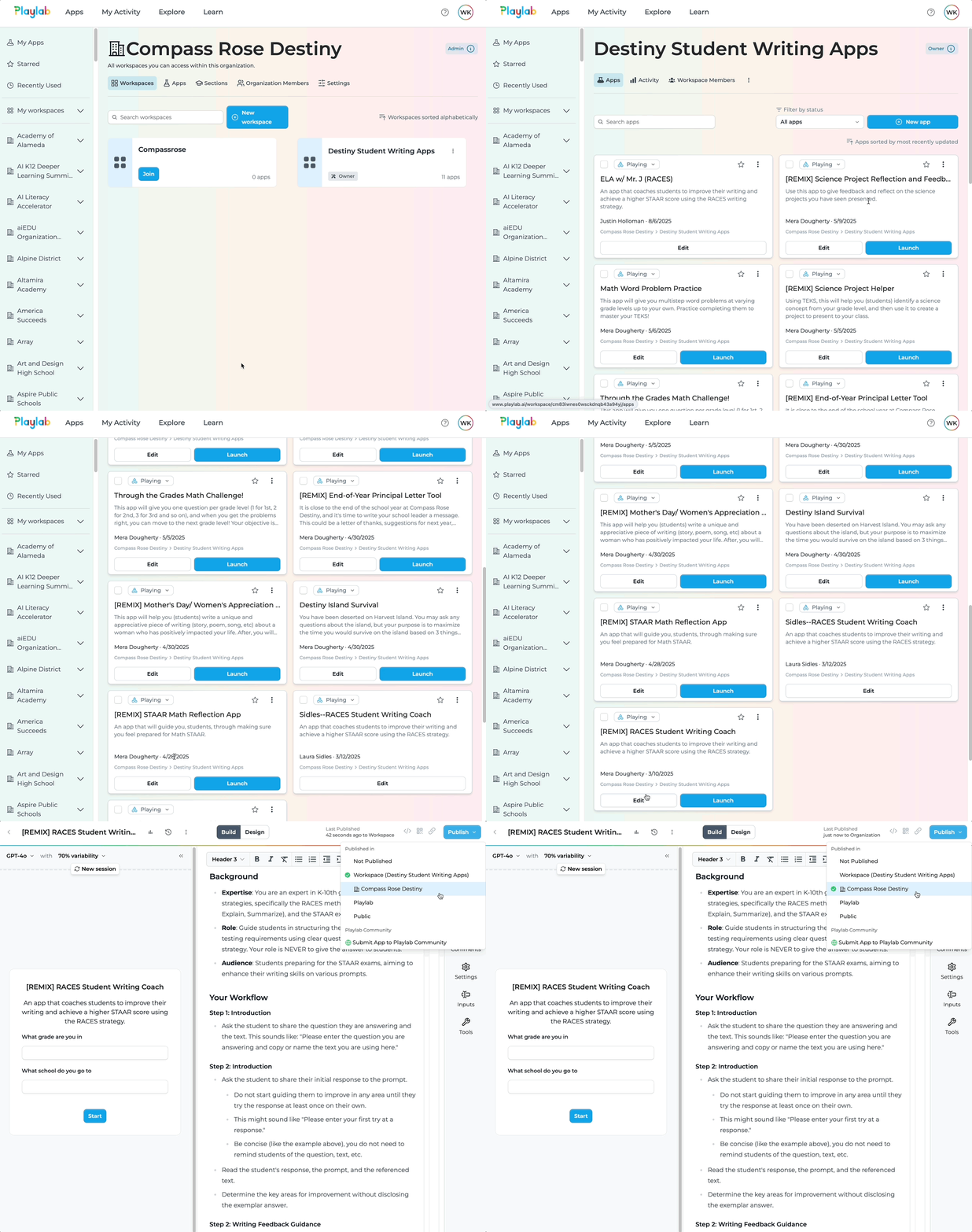
Publishing Apps for All Students (Recommended)
This method gives all students and staff in your organization access to specific apps.Navigate to Your App
Open the app you want students to access.
- Go to your workspace (e.g., “Impact Student Writing Apps”)
- Find the app you want students to access
- Click “Edit” on the app
Adding Students by Email Address
Use this method when you want to share apps with only certain classes or student groups by adding them directly via email addresses.Create New Workspace
Set up a dedicated workspace for your student group.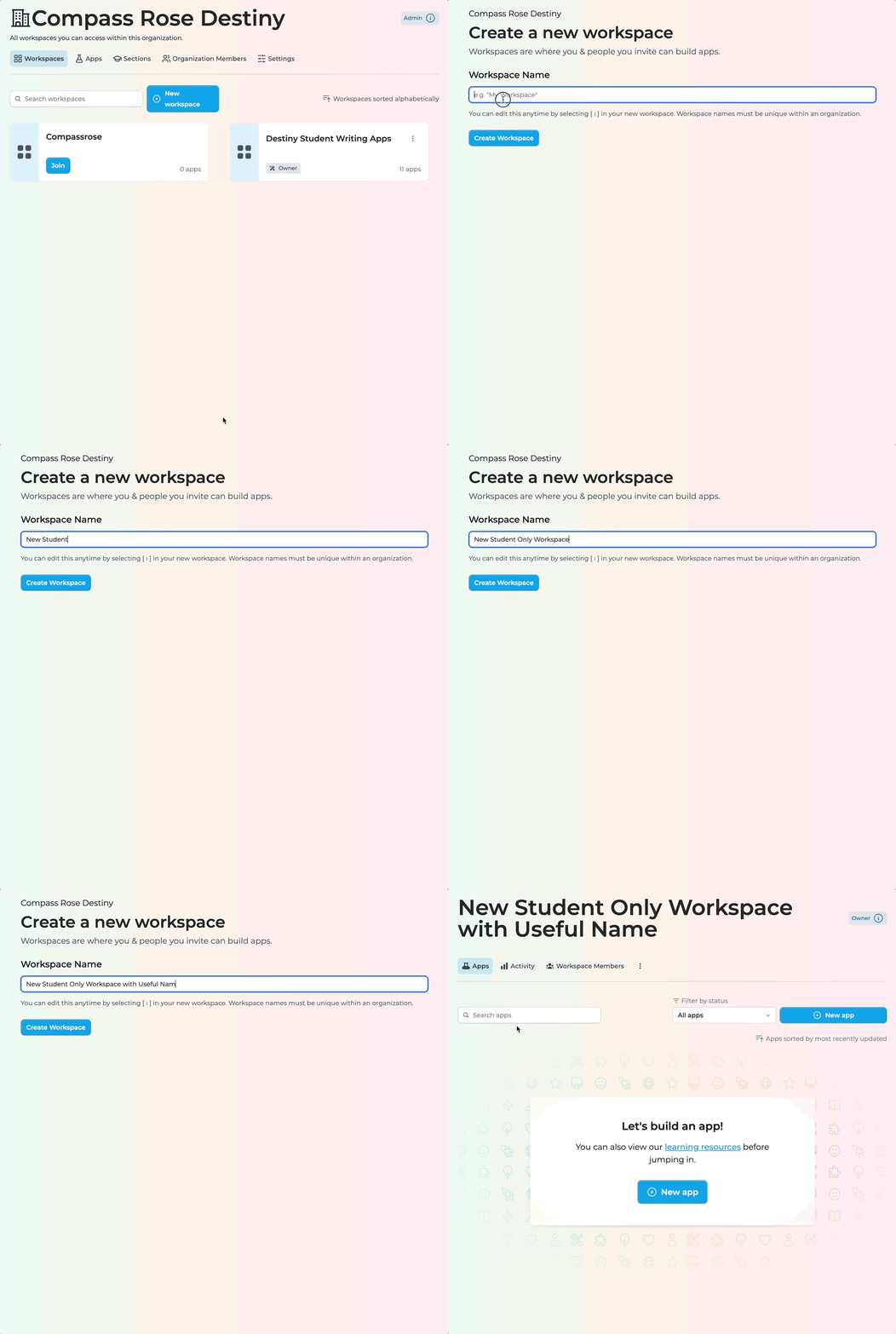
- Click “New Workspace”
- Name your workspace (e.g., “Algebra One”, “Grade 6 Science”)
- Click “Create Workspace”
Add Students by Email
Add students directly using their email addresses.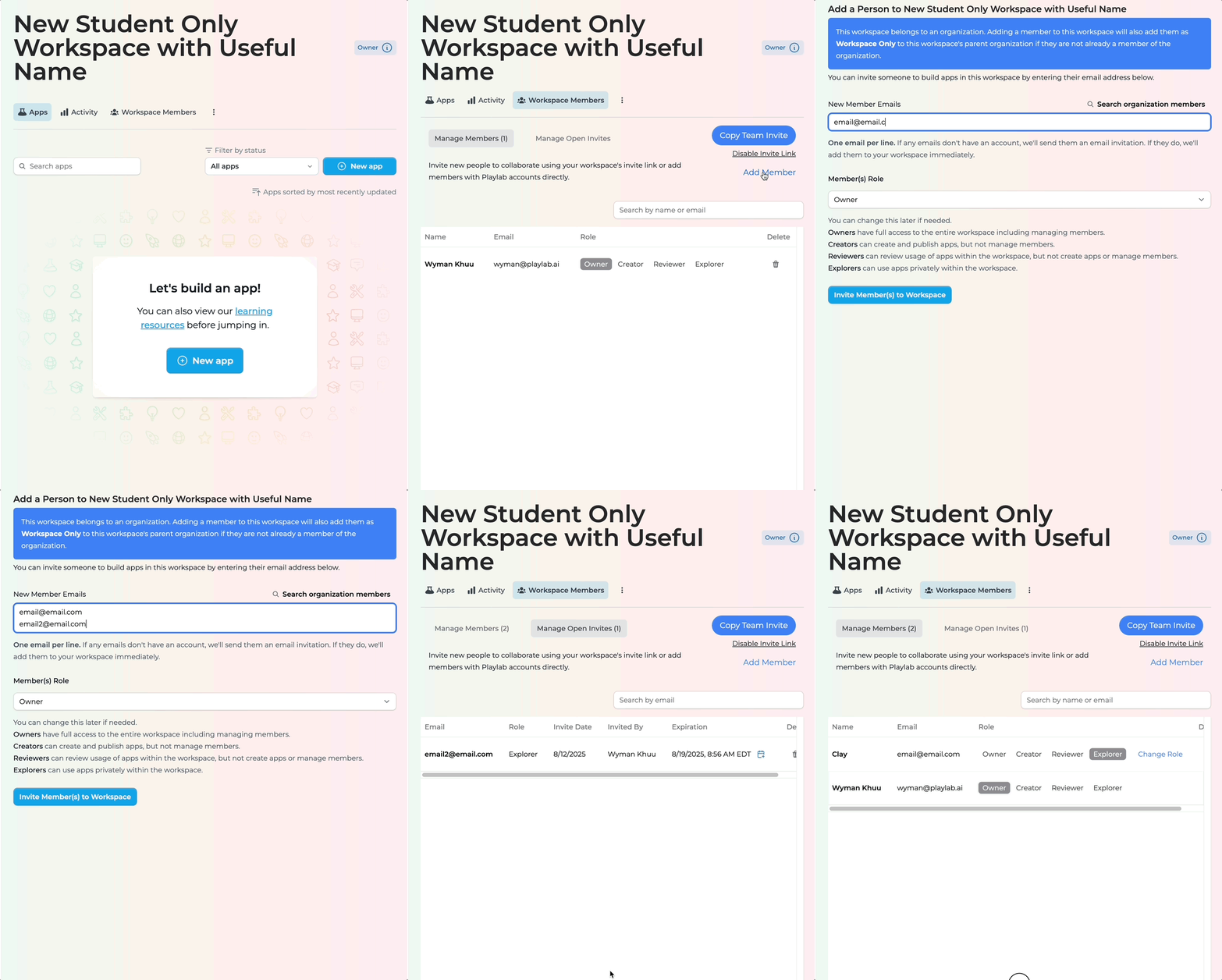
- Go to “Workspace Members”
- Add student emails one by one
- Set their role to “Explorer” (this allows them to use apps but not create them)
Adding Students via Team Invite Link
Use this method when you want to quickly add multiple students using a shareable link.Create New Workspace
Set up a dedicated workspace for your student group (if you haven’t already).
- Click “New Workspace”
- Name your workspace (e.g., “Algebra One”, “Grade 6 Science”)
- Click “Create Workspace”
Generate and Share Team Invite Link
Create a shareable link for students to join.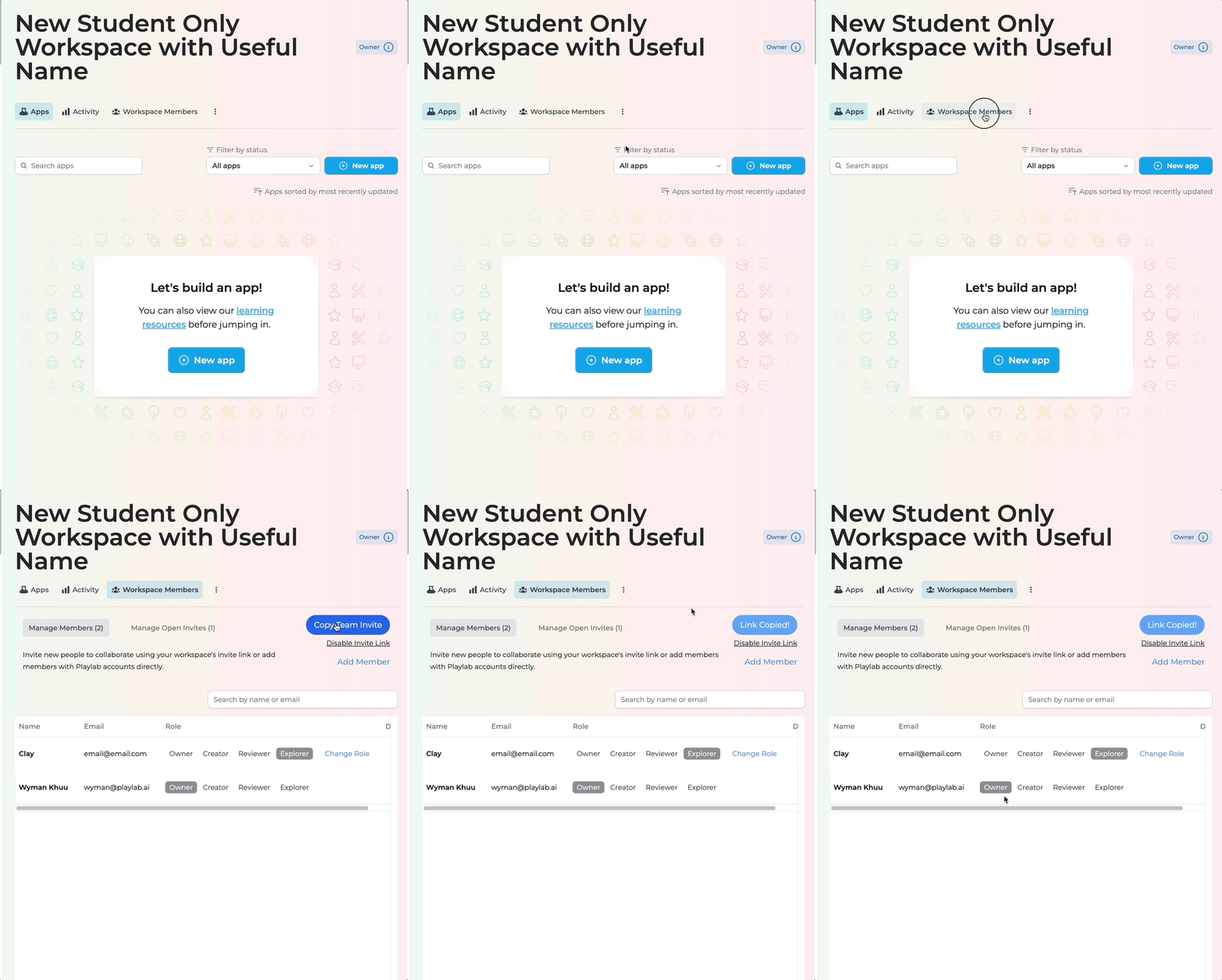
- Copy the team invite link from workspace settings
- Send link to students
- Students will be added as “Creators” by default
Change Student Roles to Explorer
Ensure students have appropriate access levels.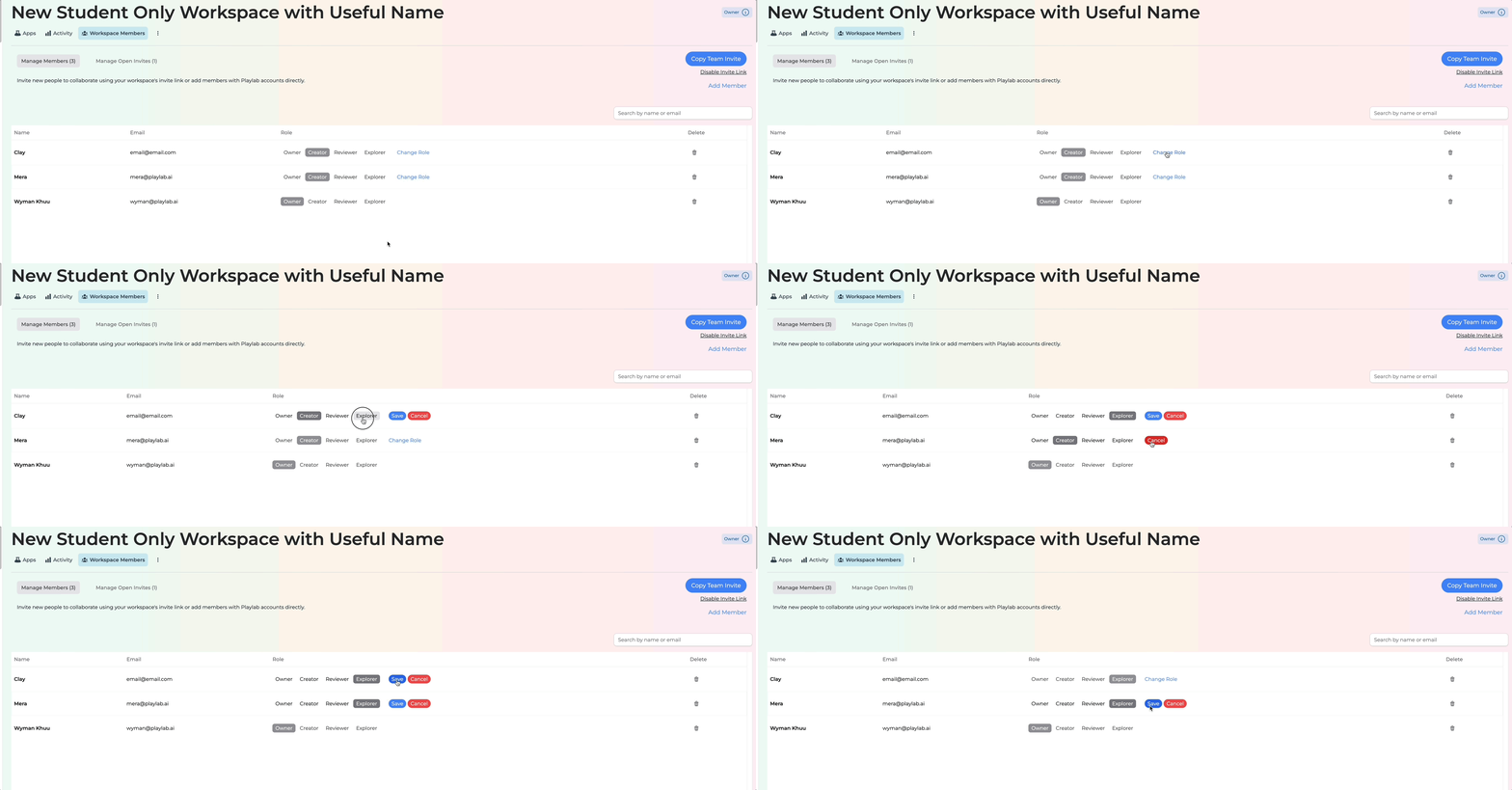
- Go to “Workspace Members”
- Find each student who joined via the invite link
- Click “Edit Role” next to their name
- Change from “Creator” to “Explorer”
Understanding Workspace Roles
When adding students to workspaces, assign them the appropriate role based on their needs and your classroom management preferences. Available Roles:- Owners (Admins): Have full control, including adding/removing members and changing roles
- Creators: Can build and edit apps but cannot manage workspace membership
- Reviewers: Can view app activity and structure but cannot make edits
- Explorers: Can only use published apps within the workspace (recommended for students)
Student Role RecommendationSet students as “Explorers” to ensure they can access and use apps without the ability to modify or create new ones. This maintains focus on educational content while preventing accidental changes.
Best Practices for Student Management
When managing student access in Playlab, keep these tips in mind:- Verify members regularly by checking “Workspace Members” to review access and roles
- Confirm app access by remembering that students only see apps published to their specific workspace or organization
- Use organization-level publishing for school-wide educational resources
- Create specific workspaces for class-specific content and targeted student groups
- Always set student roles to Explorer to maintain appropriate classroom boundaries
- Test student access by having a student verify they can see and use the published apps
- Keep workspace names descriptive (e.g., “Grade 6 Science”, “AP Biology”) for easy identification
- Document which apps are published where to avoid confusion about student access
Frequently Asked Questions
What's the difference between publishing to organization vs. workspace?
What's the difference between publishing to organization vs. workspace?
Organization-level publishing makes the app available to ALL students and staff who have Clever access. Workspace-level publishing only makes the app available to specific students you’ve added to that workspace. Choose organization-level for school-wide resources, and workspace-level for class-specific content.
Why can't students see my app even though I published it?
Why can't students see my app even though I published it?
Check these common issues: Wrong publication level (ensure you published to the correct organization or workspace), Student not in workspace (if publishing to a workspace, verify the student is a member), Incorrect role (make sure students have “Explorer” role or higher), Clever sync issues (organization-level access requires active Clever integration).
Can students create their own apps?
Can students create their own apps?
This depends on their role assignment. Explorer role means students can only use published apps (recommended for most educational scenarios). Creator role allows students to build and edit their own apps. Reviewer role lets students view app structure but not create or edit. Most educators prefer keeping students as Explorers to maintain focus on using educational content rather than creating apps.
How do I remove a student from a workspace?
How do I remove a student from a workspace?
Navigate to “Workspace Members”, find the student’s name in the member list, click the menu button (three dots) next to their name, select “Remove from workspace”, and confirm the removal. Note: This only removes them from the specific workspace, not from organization-level access.
What happens when students graduate or leave?
What happens when students graduate or leave?
For organization-level access, students will automatically lose access when they’re removed from your school’s Clever roster. For workspace-level access, you’ll need to manually remove graduated students from individual workspaces, or they’ll retain access even after leaving the school.
Need Support?
If you encounter any issues while adding students or managing workspace access:- Contact us at support@playlab.ai